Setup Program
The setup program installs Trysil in the Delphi versions on your machine: it downloads the sources from GitHub, builds the packages and sets up the IDE. The same program updates Trysil and uninstalls it.
Download and Run
Download Trysil.Setup.exe and run it with Delphi closed: if an instance of the IDE is running, the setup asks you to close it before it starts.
The setup runs as the user, without administrator rights, and writes only
under HKEY_CURRENT_USER. Its source is in Trysil.Setup in the repository.
If you prefer not to run a downloaded executable, build the setup yourself: in
a clone of the repository open Trysil.Setup\Trysil.Setup.dproj with Delphi
13, build it for Win32 in the Release configuration and run
Trysil.Setup\Win32\Release\Trysil.Setup.exe. It needs nothing but the
repository, no Trysil package. An executable you build yourself does not
trigger the SmartScreen warning.
The setup is not signed
The first time you run it, Windows SmartScreen shows Windows protected your PC. Click More info, then Run anyway.
Install
Setup type
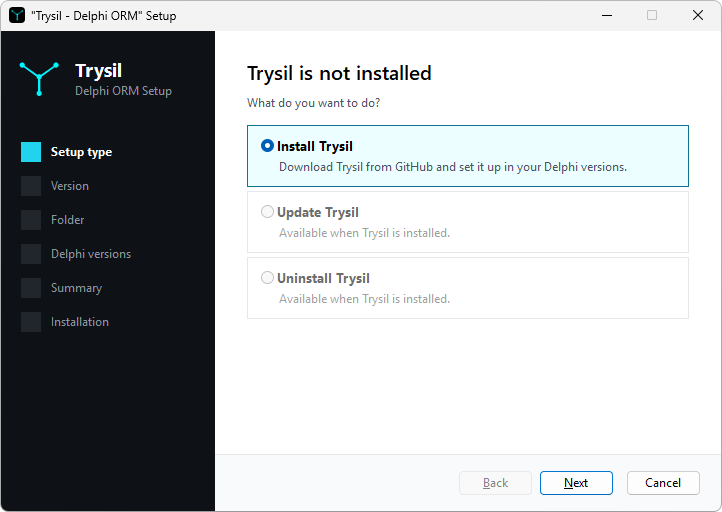
When Trysil is not installed, the only choice is Install Trysil. The other two, Update Trysil and Uninstall Trysil, are available once Trysil is installed.
Version
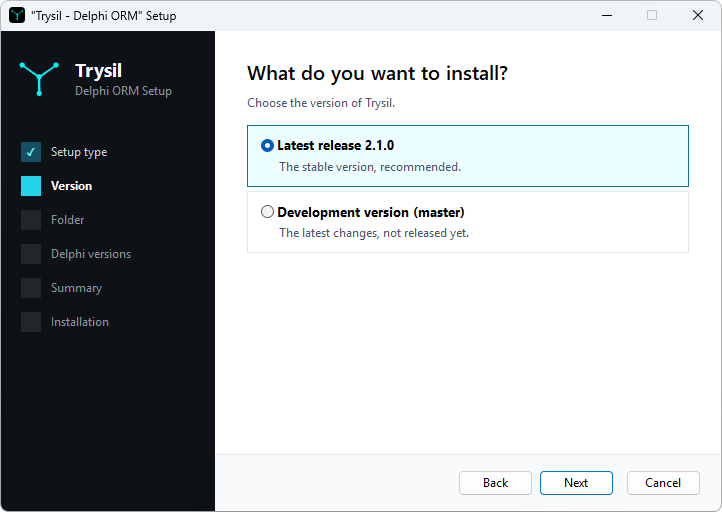
Latest release installs the latest Trysil release published on GitHub; its
number is read when the setup starts. Development version (master) installs
the current master branch, with the latest changes not released yet.
Folder
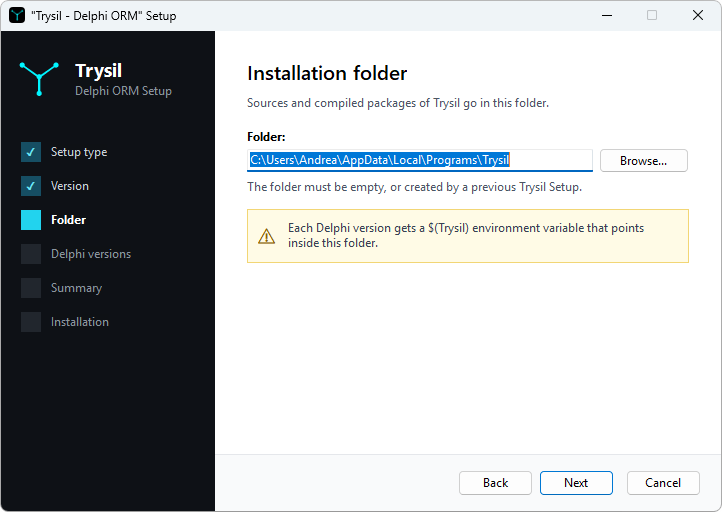
The sources and the compiled packages go in this folder, by default
%LOCALAPPDATA%\Programs\Trysil. The folder must be empty, or created by a
previous run of the setup.
Delphi versions
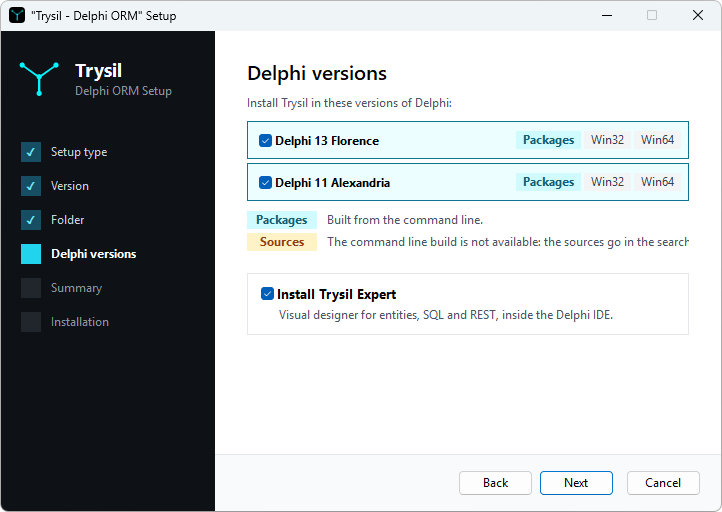
The setup lists the Delphi versions installed on the machine, each with the platforms it can build, Win32 and Win64. A version is listed only if the IDE has been started at least once, so that its options file exists.
Each version shows how Trysil is installed there:
- Packages: the setup builds the packages from the command line;
- Sources: the edition cannot build from the command line, as in the Community edition, so the setup puts the source folders in the library path and the IDE compiles them with your project.
Install Trysil Expert builds and registers the Trysil Expert. It is shown only when at least one version builds the packages.
Summary
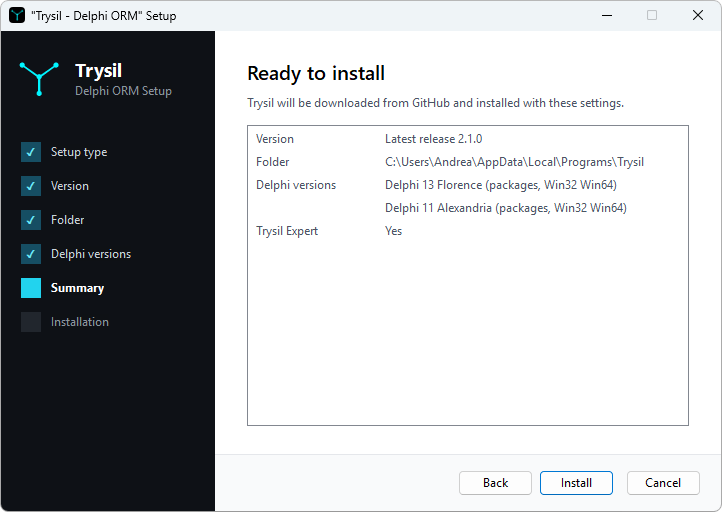
The summary lists the choices. Install starts the installation.
Installation
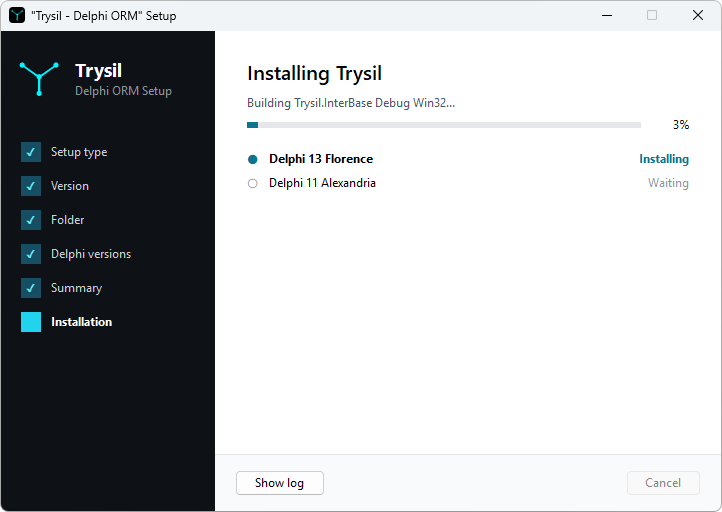
The bar shows the progress of the whole installation, and the list below it the state of each Delphi version: Waiting, Installing, Done or Failed.
Show log shows what the setup is doing, build by build:
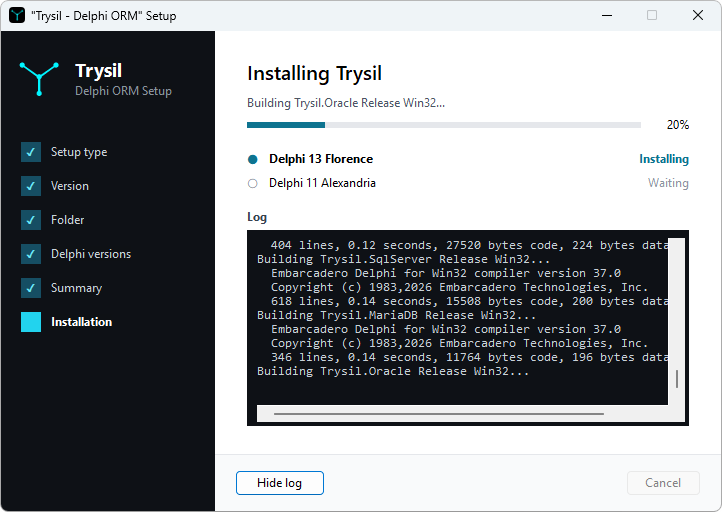
The log is also saved as Setup.log in the installation folder.
Completed
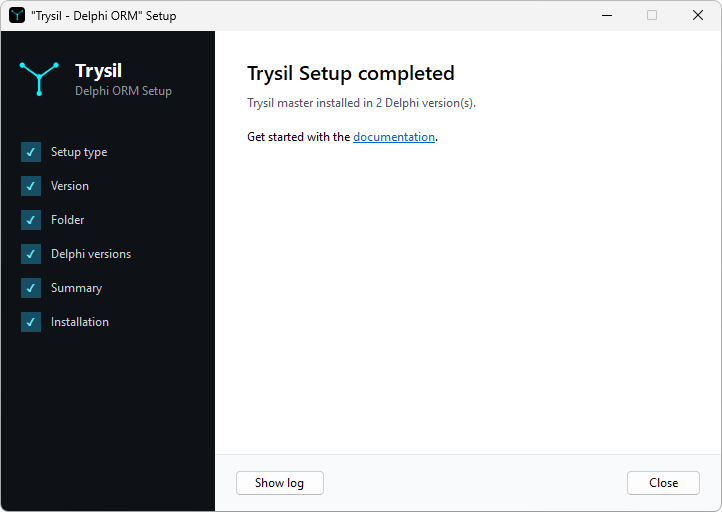
When every version is installed, the setup links to this documentation. When a version fails while others succeed, the title reads completed with errors; when nothing could be installed, it reads failed. In both cases the page links to the log, which says what went wrong.
What the Setup Changes
For each Delphi version, the setup:
- builds the packages with MSBuild, Debug and Release, for Win32 and Win64
where the platform is installed;
Trysil.SqlServerandTrysil.Oracleare skipped where their FireDAC driver is not there (it ships only with the Enterprise and Architect editions); - sets the
Trysilenvironment variable of the IDE to theLib\<ver>folder of the installation, and adds$(Trysil)\$(Platform)\Releaseto the library path; - builds the Trysil Expert and registers it, if Install Trysil Expert is ticked.
On a Sources version nothing is built: Trysil points to the installation
folder and the library path lists the source folders.
The Trysil variable is set for both the 32-bit and the 64-bit IDE. Entries of
the library path that use $(Trysil) are replaced, so running the setup again
does not duplicate them.
A Trysil configured by hand
The setup owns the Trysil variable, the library path entries that use
$(Trysil) and the Trysil entry of the IDE experts. If you set them up
by hand, for example for a clone of the repository you build yourself, the
installation replaces them with its own, and uninstalling removes them,
yours included. To go back to your configuration, set them again after
uninstalling.
Custom IDE profiles
The setup configures the standard profile of each IDE, under
HKEY_CURRENT_USER\Software\Embarcadero\BDS. A profile started with
bds -r <name> lives under a key of its own, and the setup leaves it
alone: there, set the Trysil variable, the library path and the Expert
by hand, as described in Installation.
Finally the setup registers Trysil in the installed apps of Windows, with the choices you made.
Update
Run the setup again, or open it from the installed apps of Windows, and choose
Update Trysil. The update keeps the folder, the Delphi versions and the
Expert choice of the installation; it asks only for the version, the latest
release or master.
When the installed version is already the latest one, the setup stops without downloading anything:
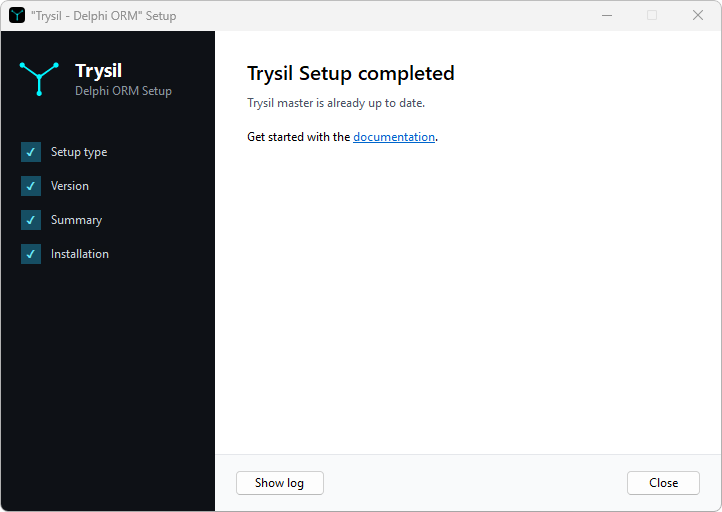
For master the setup compares the commit: it updates only when master has
moved since the installation.
The update downloads and builds in a separate folder next to the installation. Only when every Delphi version succeeds does it replace the installed folder; if a version fails, it discards the new folder and leaves the installation as it was.
A Delphi version installed later
The update works on the Delphi versions chosen at installation. To add Trysil to a Delphi version installed afterwards, uninstall Trysil and install it again.
Uninstall
Choose Uninstall Trysil. For each Delphi version of the installation the
setup removes the library path entries that use $(Trysil), the Trysil
variable and the Expert; then it deletes the installation folder and removes
Trysil from the installed apps of Windows.